
Seven reasons Shopify analytics stop matching GA4, Meta, and reality — and the 30-minute audit that tells you which one is breaking your store’s data.
Open three tabs. Tab one: Shopify Analytics, total orders last 30 days. Tab two: GA4, Purchase events same period. Tab three: Meta Ads Manager, Purchases same period.
Now look at the numbers. If they’re within 5% of each other, you’re in the top decile of Shopify stores for data hygiene. For most stores we audit, those three numbers disagree by 20-60% — and the founder has been making ad-budget, product, and pricing decisions based on whichever one happened to look best that week.
This is one of the most expensive forms of self-deception in ecommerce. When your Shopify analytics aren’t tracking properly, every “optimisation” you make is a guess dressed up as data. You can’t tell if your ads work. You can’t tell which products convert. You can’t tell which traffic sources are profitable. You’re flying blind and don’t know it.
The good news: there are only about seven specific ways Shopify analytics typically break. Most stores have one or two of them. Each takes about five to fifteen minutes to diagnose. Together they explain almost every “why don’t my numbers match?” question we get.
What follows is the tracking diagnostic we run on every audit. By the end of this walk-through, you’ll know exactly where your store’s analytics are leaking signal — and what to do about it.
(This article extends the tracking section of our full seven-leak diagnostic. If you haven’t read that one yet, it gives you the broader context. This piece goes deep on the tracking layer specifically.)
The Big Idea: the Three-Dashboard Rule
Before we look at the seven leaks, here’s the framework that ties them all together.
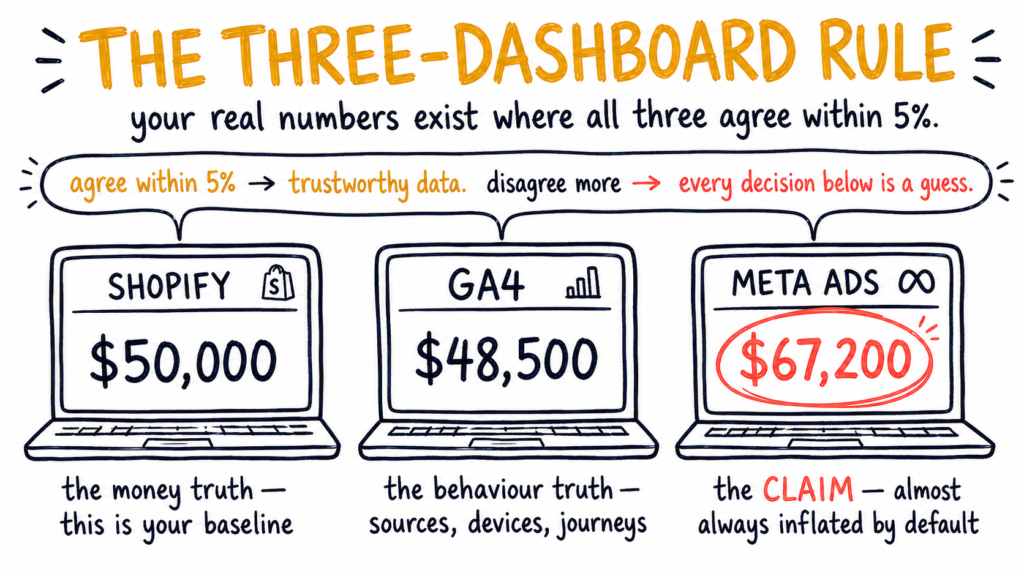
Your real numbers exist where Shopify, GA4, and Meta Ads Manager all agree within 5%. That’s not just a nice-to-have — it’s the threshold below which the data is trustworthy enough to make decisions from.
Three reasons this framework matters:
- Shopify is your money truth. It knows every order, every refund, every dollar collected. If Shopify says you made $50,000 last month, you made $50,000. This is the baseline.
- GA4 is your behavioural truth. It tells you which traffic sources, devices, and user journeys led to those purchases. But its purchase count should match Shopify’s, give or take a few percent.
- Meta Ads Manager is the claim. It tells you what Meta wants you to believe its ads caused. This number is almost always inflated by default (we’ll cover why in Leak #7).
When all three agree within 5%, you have a functioning data layer. You can trust the relative numbers — which campaign is best, which audience converts highest, where your spend is most efficient.
When they disagree, everything downstream is corrupted. Optimising creative against bad data just gets you to wrong conclusions faster. The fix isn’t more sophisticated reporting — it’s getting your three dashboards into alignment first.
This is why we always start audits with the tracking layer. It’s the foundation. Get the foundation right and every other optimisation compounds. Get it wrong and nothing else matters.
Leak #1 — GA4 isn’t seeing your Shop Pay purchases
This is the single most common reason Shopify analytics not tracking properly: GA4 misses a meaningful percentage of Shop Pay purchases because the Shopify-GA4 integration wasn’t configured the way Google recommends.
Why it happens: Shop Pay checkouts route through shop.app rather than your store’s domain. If your GA4 setup wasn’t properly configured for cross-domain tracking, those purchases get attributed to “direct/none” traffic in GA4, lost from any campaign attribution, or missed entirely. On a typical Shopify store, 20-40% of mobile checkouts use Shop Pay — meaning if this leak is active, you could be missing nearly half your mobile conversion data.
How to diagnose, in five minutes:
- Pull Shopify’s Orders count for the last 30 days
- Pull GA4’s Purchase events for the same period (Reports → Monetisation → Purchases)
- Calculate the gap as a percentage
If GA4 is reporting 10-30% fewer purchases than Shopify, this is almost certainly the leak. The gap is often bigger on mobile-heavy stores.
How to fix:
- Go to Shopify admin → Online Store → Preferences → Google Analytics
- Verify your GA4 measurement ID is connected
- Enable the Enhanced Ecommerce / Google & YouTube Channel integration via the Shopify App Store
- In GA4 itself, ensure
shop.appis added to your Unwanted Referrals list under Data Streams → Tagging Settings (so Shop Pay traffic doesn’t get attributed as referral traffic from Shopify itself)
After fixing, wait 48 hours for fresh data, then re-check the dashboards. The Shopify-to-GA4 gap should close to under 5%.
Leak #2 — Meta Pixel fires twice on Thank You pages
This is the leak that makes your Meta ad reports look better than reality. Meta says you got 200 conversions; Shopify shows 130. The Meta number is inflated because the pixel is firing twice on every successful order.
Why it happens: Most stores have two Meta tracking installations running at the same time and don’t realise it. The Shopify-Meta app adds one. The store theme has another hardcoded in by a developer years ago. Both fire on the order confirmation page. Meta counts both as separate purchase events.
How to diagnose, in five minutes:
- Install the Meta Pixel Helper Chrome extension (free)
- Open an incognito browser tab, go to your store, add a product, and complete a test purchase ($0 with a 100%-off discount code works)
- On the Thank You page, click the Pixel Helper extension icon
- If it shows the Purchase event firing 2+ times — you’ve found the leak
How to fix:
This needs a careful audit because removing the wrong pixel kills your tracking entirely. Identify which pixel is the one your active ads are reporting through (usually the Shopify-Meta app one), then have a developer remove the hardcoded version from your theme.liquid file. Re-test with Pixel Helper afterwards.
A small detail that matters: if your reported Meta conversions suddenly drop by ~50% after fixing this, that’s a good thing. The number you have now is the real number. Everything before this fix was an illusion.
Leak #3 — Paid traffic is being attributed to “direct”
This one’s silent. Your Meta ads are working — but GA4 is crediting the sales to “direct/none” traffic because your UTM parameters are missing or malformed. On the surface, GA4 makes it look like your direct traffic is suddenly amazing and your paid ads are useless. You spend a week trying to find out why, only to realise you’ve been undercrediting paid the whole time.
Why it happens: Either your ad URLs don’t have UTM parameters at all, or they have inconsistent ones that GA4 strips out. iOS 14+ also collapses some click parameters silently — fragments of the URL string get dropped on the redirect.
How to diagnose, in five minutes:
- GA4 → Reports → Acquisition → Traffic acquisition
- Look at the Direct / None row and check what percentage of conversions it accounts for
- For a healthy store running paid ads, Direct should be 15-30% of conversions (organic search and branded traffic). If it’s over 40%, your paid traffic is leaking into it.
How to fix:
- Audit every Meta ad URL — they should have UTM parameters like
?utm_source=facebook&utm_medium=paid&utm_campaign=campaign_name - Standardise on a UTM template across all paid platforms (Google Ads, Meta, TikTok)
- In GA4 → Admin → Data Streams → Configure Tag Settings → List unwanted referrals — add any platforms that are corrupting attribution
A practical tip: use Google’s URL Builder (free) to generate consistent UTMs, then save the templates somewhere so every new campaign follows the same pattern. Inconsistent UTMs cause inconsistent reports.
Leak #4 — Currency mismatch between Shopify and GA4
This one’s almost invisible because the count of orders matches, but the revenue numbers are wildly off. Shopify says you made $50,000 last month. GA4 says you made $33,000. Same number of orders, completely different revenue figures.
Why it happens: Shopify reports in your store currency (AUD for Australian stores). GA4 defaults to USD unless you change it. If you haven’t manually set the currency in GA4 → Admin → Property Settings, every AUD purchase value is being read as USD and reported at the wrong magnitude.
How to diagnose, in two minutes:
- Compare Shopify total revenue last 30 days to GA4 total revenue same period
- If GA4 is showing roughly 65% of Shopify’s number (the AUD-to-USD exchange rate), you’ve found the leak
- A 40-50% gap with order counts that match is the dead giveaway
How to fix:
- GA4 → Admin → Property Settings → Currency displayed → change to AUD
- Wait 24-48 hours for fresh data, then re-verify
This is one of the fastest fixes on the list — but it can mask other leaks. So always check this first before going deep on more complex diagnostics.
Leak #5 — Meta is undercounting because you skipped Conversions API
iOS 14 was the single biggest tracking event in modern ecommerce. Apple gave users the right to opt out of tracking, and the majority of them did. For most Australian Shopify stores, Meta’s pixel now sees only 40-60% of actual conversions because of cookie restrictions, ad blockers, Safari ITP, and iOS opt-outs.
Meta knows this. Their answer was the Conversions API (CAPI) — a server-side tracking method that doesn’t rely on the browser pixel. When you set it up properly, Meta gets your conversion data directly from Shopify’s servers, bypassing all the browser-level restrictions. Reported conversions go up. Ad optimisation improves. ROAS reporting becomes meaningful again.
Yet most Shopify stores never set it up.
How to diagnose, in two minutes:
- Meta Ads Manager → Events Manager → your Dataset (pixel) → Settings
- Look at the Event Match Quality score and the Server events count
- If Server events are zero or close to it, you don’t have CAPI running
How to fix, the easy way:
- Install the Facebook & Instagram by Meta app from the Shopify App Store (it’s free)
- Inside the app, connect your Meta Business account
- Enable the Conversions API toggle and the Maximum tracking permission setting
- Verify Server events start arriving within 24 hours
A more advanced setup uses Stape, Trackify, or a custom server-side GTM configuration — but the Shopify-Meta app handles 90% of what most stores need without a developer involved.
The lift after setting up CAPI properly is usually substantial. We’ve seen Meta’s reported conversions go up 30-50% post-CAPI on Australian stores — and that’s not because Meta is making the numbers up, it’s because those conversions were always happening and the pixel just wasn’t seeing them. CAPI lets Meta optimise against real data, which in turn makes your ads perform better. Compound win.
Leak #6 — Returning customers being counted as new
This one quietly poisons your customer lifetime value (CLV) and acquisition cost reporting. Returning customers get counted as new because their email or device fingerprint doesn’t match up across sessions. Suddenly your “new customer acquisition cost” looks better than it is, and your repeat-purchase rate looks worse.
Why it happens: Several reasons, most commonly: customer accounts aren’t enabled so guest checkouts create separate records each time; the same customer uses different email addresses (a typo, an alternate); Shopify can’t link the cross-device behaviour.
How to diagnose, in five minutes:
- Shopify admin → Customers → check the “Repeat customer rate” metric
- Compare to your gut feeling — if you know many customers come back but the number says only 8-12%, returning customers are being miscounted
How to fix:
- Settings → Customer accounts → set to Optional (lets customers create accounts but doesn’t force them)
- Clean up your customer list periodically — merge duplicates with the same name and shipping address
- For high-value stores, consider a customer data platform (CDP) like Klaviyo’s customer object — it deduplicates better than Shopify’s native logic
This leak doesn’t affect total revenue reporting but it badly distorts every per-customer metric you use to make marketing decisions.
Leak #7 — Meta taking credit for sales it didn’t cause
This is the big one. Even when your tracking is technically working, Meta’s default attribution credits itself for a lot of sales that were going to happen anyway. The customer was already going to search for you on Google. The returning customer was going to repurchase regardless. Meta sees a click somewhere in the journey and claims the conversion.
We covered this briefly in the Incremental Attribution bonus of our 1,000 Visitors article — but here’s the deeper take.
Standard ROAS counts every conversion Meta sees a click or impression near. Incremental ROAS isolates only the sales the ad actually caused — the lift over what would have happened without the ad running. The gap between the two is how much credit Meta is taking for sales it didn’t cause.
Meta knows this is a problem. In 2024 they quietly rolled out Incremental Attribution inside Ads Manager — most agencies will never show it to you because it makes their reports look worse.
How to turn it on:
- Open Ads Manager → your campaign view
- Click the Columns dropdown (top-right of the performance table)
- Select Compare Attribution Settings
- Scroll down and click Advanced Options
- Tick the Incremental Attribution box and click Apply
What you’ll see: your reported numbers get worse. Conversions drop. ROAS looks lower. Those are the real numbers. Everything above that was Meta giving itself credit for things it didn’t cause.
A useful pattern to watch for: high standard ROAS + low incremental ROAS means your campaign is largely taking credit for sales that would have happened anyway (this is what most retargeting campaigns look like). High standard ROAS + high incremental ROAS means the campaign is actually driving new revenue (this is what good prospecting campaigns look like).
Two caveats: incremental attribution isn’t available to all accounts yet — Meta has rolled it out gradually through 2024-2025, and access depends on account eligibility plus minimum volume requirements. And: retargeting will always look terrible on incremental, because retargeting reaches people already near the bottom of the funnel who would often convert anyway. Don’t kill all retargeting just because incremental ROAS is low — but do question how much you’re spending on it.
This is the single most honest number you can get inside Meta. Most agencies will never show it to you, because it makes their own reports look worse. We always show it.
The 30-minute monthly tracking ritual
You can’t fix what you don’t measure. Here’s the simple ritual we use on every client account, monthly, that catches tracking leaks before they corrupt big decisions.
On the first business day of every month, spend 30 minutes:
- Pull three numbers for the previous calendar month:
- Shopify Orders count and total revenue
- GA4 Purchase events count and total revenue
- Meta Ads Manager Purchases count and total purchase value
- Calculate the gaps as percentages. Use Shopify as your source of truth and see how far the other two have drifted from it.
- Interpret the pattern:
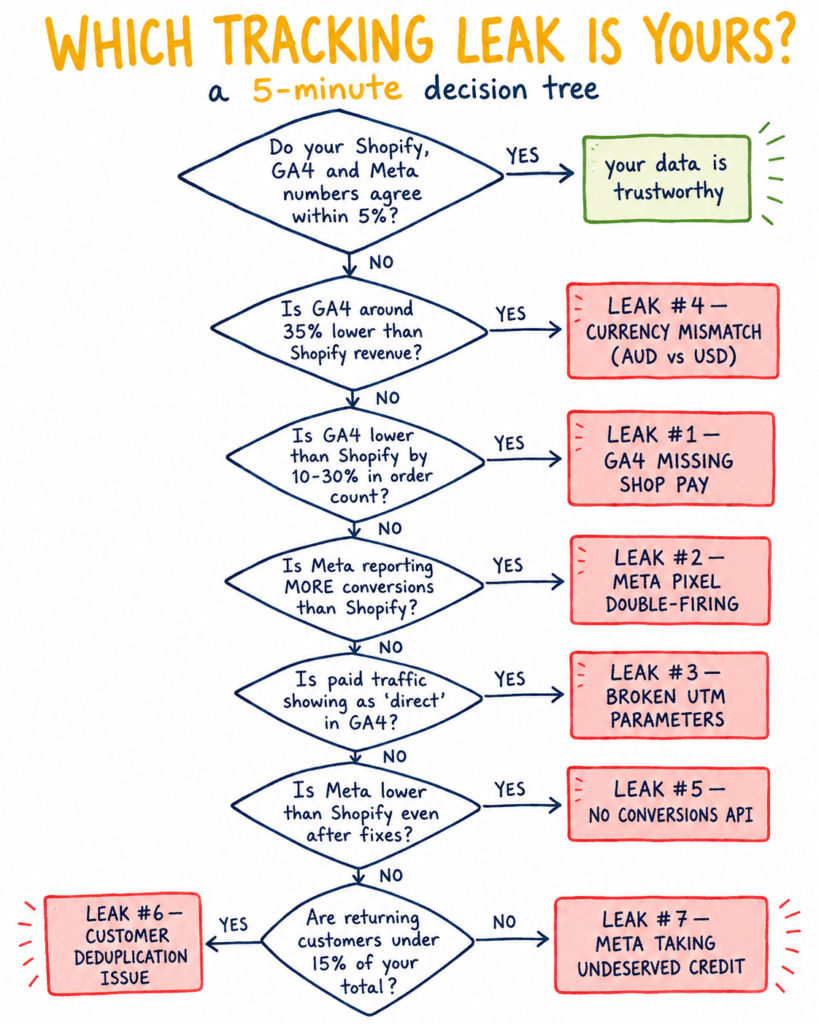
- GA4 lower than Shopify by 10-30%? → Probably Leak #1 (Shop Pay) or Leak #3 (UTM/direct misattribution)
- GA4 lower than Shopify by exact ~35%? → Probably Leak #4 (currency mismatch)
- Meta higher than Shopify? → Probably Leak #2 (pixel double-firing)
- Meta lower than Shopify even after CAPI? → Probably Leak #5 partially solved, but you may also need to check incremental attribution settings (Leak #7)
- Pick one leak per month to fully fix. Don’t try to do all seven at once — you won’t be able to tell which fix is causing which change. Sequential is better than parallel here.
- Re-run the comparison after 30 days to confirm the gap closed.
That’s the whole ritual. Half an hour a month, and your data layer stays trustworthy enough to make real decisions from. Skip it and your numbers slowly drift apart again as Shopify, GA4, and Meta all update their systems independently.
Why fixing Shopify analytics is the most ownable lane in any agency’s work
Most agencies optimise creative. They redesign landing pages, write new ad copy, test new product photos. They don’t touch the data layer because it’s “just plumbing” — not glamorous, not visible to the client, not a clear deliverable.
But here’s the truth: every creative optimisation made against broken data just gets you to wrong conclusions faster. You test ad A against ad B, ad A wins by 12%, you scale it — but it was a measurement artefact. Your real winner was ad B and you’d never know.
When the data layer is solid, the rest of the work compounds. You actually know which creative is winning. You actually know which audience is profitable. You actually know whether your ROAS is real. Every optimisation you make from then on builds on truth instead of noise.
This is one reason we always start client work with a tracking audit, not a creative audit. Solid data first. Optimisation second. Most agencies do this in the wrong order — and most clients never realise their reporting was lying to them the whole time.
Shopify’s Orders and Revenue numbers are highly accurate — Shopify knows every transaction that hit its checkout. Where Shopify analytics get less reliable is in attribution (which marketing source caused which order), customer reporting (returning vs new), and reporting over time when integrations change. So treat Shopify as your money truth, but cross-reference attribution against GA4 and Meta.
The most common reasons: Shop Pay purchases not being tracked properly in GA4 (Leak #1 above), currency mismatch (Leak #4), missing UTMs on paid traffic (Leak #3), and incorrect Google Analytics 4 measurement ID configuration. If the gap is over 5%, walk through the seven leaks above and find which one applies.
Both, for different things. Use Shopify for revenue, orders, refunds, customer count, AOV — the financial truth. Use GA4 for traffic source attribution, user journey, device breakdowns, behaviour analysis. They’re complementary, not interchangeable. Trying to use one to answer the other’s questions is where most reporting confusion starts.
Most individual leaks above take 5-30 minutes to fix once diagnosed. The hardest part is identifying which leak is yours, not the fix itself. For a full data layer audit and rebuild — Conversions API setup, GA4 reconfiguration, UTM standardisation, currency settings — budget 4-6 hours of focused work. After that, the monthly 30-minute ritual keeps things clean.
For most leaks above — no. The Shopify-Meta app and Shopify-Google Analytics integration handle 80% of what most stores need without code changes. You need a developer specifically for: removing hardcoded duplicate pixels from your theme (Leak #2), advanced server-side GTM setups, and custom Conversions API configurations beyond what the standard app offers. For everything else, the Shopify admin and the relevant ad platforms’ UI is enough.
Standard ROAS counts every conversion Meta sees a click or impression near — including sales that would have happened anyway from returning customers or branded search. Incremental ROAS isolates only the sales Meta’s ads actually caused (the causal lift). The gap between them is how much credit Meta is taking for sales it didn’t cause. Most accounts see their real (incremental) ROAS at 30-60% lower than reported (standard) ROAS. That’s normal. The incremental number is the one to make budget decisions from.
Almost always Leak #2 — the Meta Pixel is firing twice on your Thank You page because you have two pixel installations running (one from the Shopify-Meta app, one hardcoded in your theme). Install the Meta Pixel Helper Chrome extension and check. The fix is to remove the duplicate.
If your Shopify analytics aren’t tracking the way they should and you’re not sure which of the seven leaks is yours, we can run the full audit in 20 minutes.
We’ll pull your Shopify, GA4, and Meta Ads Manager numbers live with you, find the gaps, identify the leak causing each gap, and tell you which one is costing you the most decision-clarity right now. No tools to install ahead of time.
Book a free 20-minute audit →
For the broader picture of why stores leak traffic-into-sales, start with 1,000 Visitors. Zero Sales. Here’s Where They’re Leaking. For the cart-specific deep-dive, see Your Shopify Cart Has a 70% Leak.